Quickstart
This page takes you from nothing installed to one order booked, billed and recognized in NetSuite. Plan on about a day the first time. Most of that is one-time NetSuite setup.
We'll follow QuantumBit, a company that sells annual platform subscriptions in Salesforce Revenue Cloud and closes its books in NetSuite. QuantumBit has sold Kingsbridge Digital a one-year subscription, and wants that order in NetSuite with its revenue recognized month by month.
Setting up a demo instead? Use the demo install runbook.
1. Install both parts
Continuous Control has a Salesforce part and a NetSuite part.
- Salesforce: install the package from its install link. Give the Continuous Control permission set to everyone who syncs. Also give Continuous Control Admin to whoever sets up the connection.
- NetSuite: your NetSuite admin runs the installer from the release zip, then creates the login details Salesforce will use. See Install the NetSuite components. Then they finish a few steps in the NetSuite UI.
2. Connect Salesforce to NetSuite
In Salesforce, open the Continuous Control app and go to the NetSuite Connection tab. It's a wizard with nine steps. Work through them in order. Each step tells you when it's done, and you can run any step again. The Connection wizard page explains each one.
3. Book your first order
Pick an activated order. Its account needs billing details, and the order needs a Contract.
Open the order. The Book Order to NetSuite card lists everything that will be sent. Click the button of the same name.
The card shows each part as it's sent: customer, contract, order, lines, then billing schedules. When it's done, you'll see Booked and an Open RC Contract in NetSuite link.
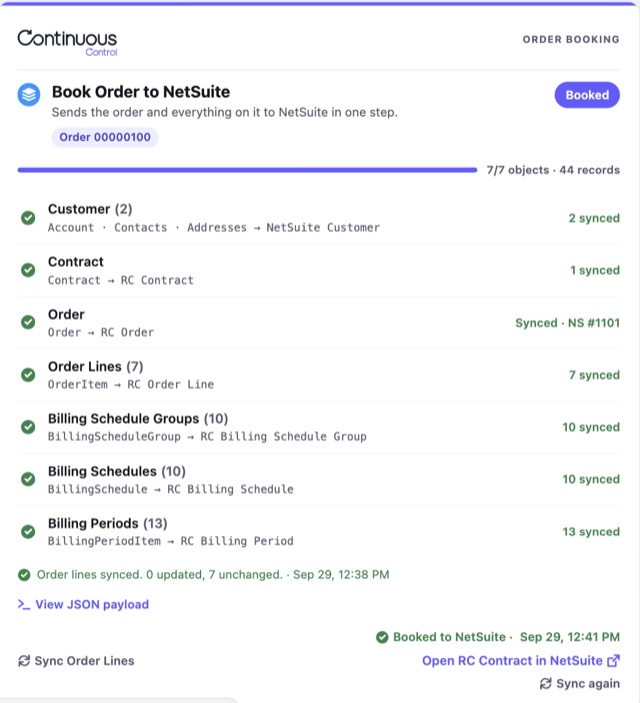
Seeing Booked with warnings? Some order lines didn't match an item in NetSuite. Match the product to an item in wizard step 7, then book again. See Booking an order.
Follow the link to NetSuite. Kingsbridge's order is now an RC Contract (RC stands for Revenue Cloud). NetSuite has already worked out what QuantumBit owes Kingsbridge and when, and planned the revenue to match. The contract shows the full amount as Booked, with nothing Billed or Recognized yet.
4. Sync an invoice
Run billing in Salesforce the way you normally do, and post the invoices. Then open the Invoice Batch Run and click Sync Invoices to NetSuite.
Each posted invoice arrives in NetSuite as a standard invoice. Salesforce calculates the tax, so the totals match to the cent. NetSuite then updates the Billed amount on Kingsbridge's contract, and sends the new totals back to Salesforce. See Invoices & credit memos.
5. Recognize revenue
In NetSuite, open the RC Contract and click Recognize Revenue. Before anything posts, you'll see what will be recognized in each period, with the accounts it posts to. Confirm, and NetSuite posts one journal entry per period, moving the amount from Deferred Revenue to Revenue. See Running the revenue engine.
6. See the results in Salesforce
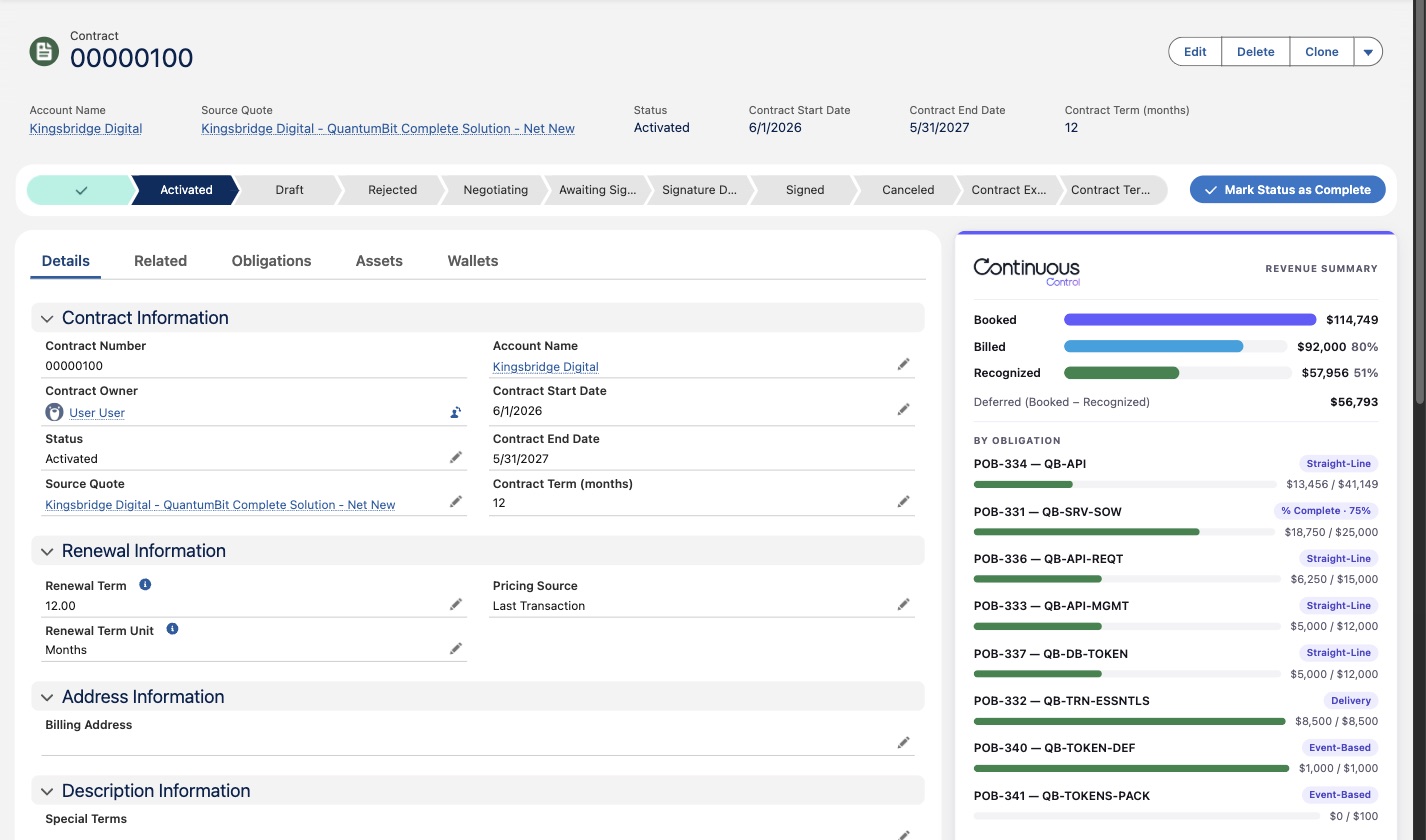
Open Kingsbridge's Contract in Salesforce. The Revenue Summary card shows how much has been booked, billed and recognized, and how much is still deferred. The numbers come from NetSuite.