Booking an order
Book an order to send it to NetSuite and start tracking its revenue. One click sends the customer, the contract, the order, its lines and its billing schedules together. NetSuite turns them into an RC Contract.
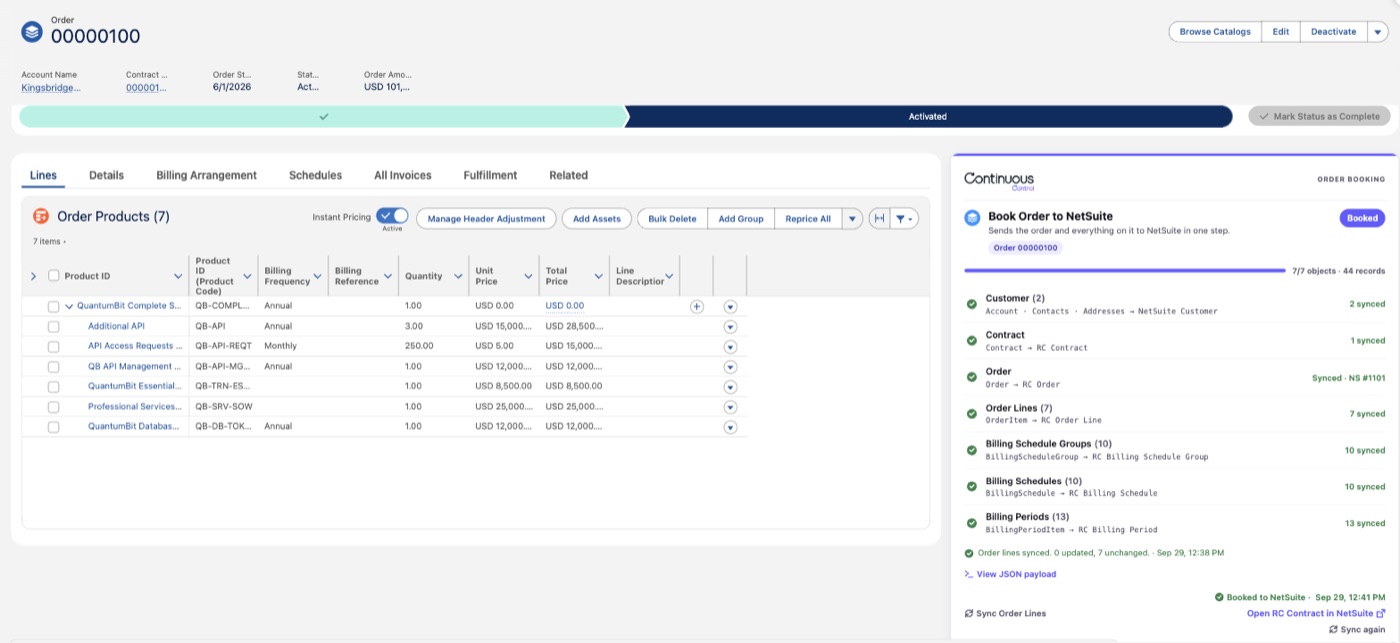
QuantumBit has sold Kingsbridge Digital a one-year subscription to the QuantumBit Complete Solution, plus monthly token usage. The order is activated in Revenue Cloud. Here's how QuantumBit books it.
Check the order first
- The order must be activated. Until it is, the button stays off.
- The order must have a Contract. NetSuite builds its revenue records around the contract, so booking without one isn't possible.
- The order's Legal Entity picks the NetSuite subsidiary. You set these up in wizard step 7.
Book the order
- Open the order in Salesforce. The Book Order to NetSuite card lists everything that will be sent, with counts. It also shows when the order was last booked.
- Click Book Order to NetSuite.
- Watch each row turn green as NetSuite confirms it: customer, contract, order, lines, then billing schedules.
When it's done, the card shows Booked to NetSuite and the time it finished.
Each row shows how many records the booking actually sent. If a row sent fewer than the order has, it gets a warning icon and says so, for example "0 of 7 synced". Reload the page later and the card shows the same result, because it reads the last booking back.
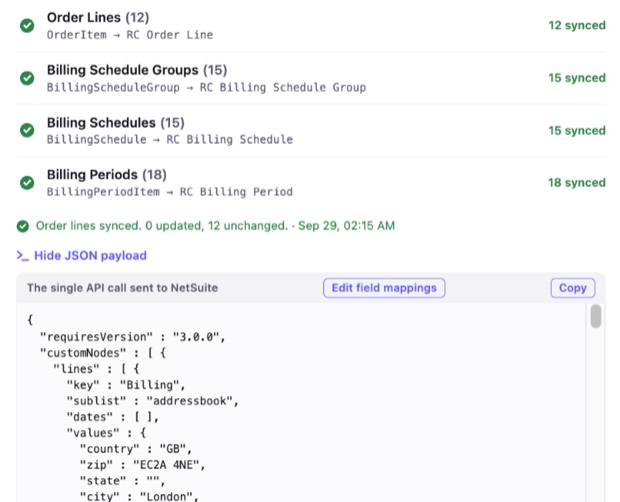
The customer's billing and shipping addresses go with it. You choose which fields they send in Calls & Mappings.
Open the contract in NetSuite
Click Open RC Contract in NetSuite to see what the booking created. The contract shows Kingsbridge's full order amount as Booked, with nothing Billed or Recognized yet.
About half a minute later, NetSuite finishes the revenue side. It groups the lines into performance obligations and builds a revenue plan for each. The obligations then show up on the Salesforce Contract. See The Book Order call flow for each step.
Fix "Booked with warnings"
This means the order arrived, but some lines have no matching NetSuite item. The warning strip says how many lines are affected. Each row that fell short shows a warning icon, such as Order Lines "0 of 7 synced". Rows that hang off those lines, like billing schedules, can fall short too.
Match the product to an item in wizard step 7, or fix the item in NetSuite. Then click Sync again.
Fix a failed booking
If the booking fails, the card turns red and shows the error. The pill reads "Booking failed", and it still does after you reload the page. Nothing needs cleaning up. Fix the cause and book again. The same NetSuite records are updated.
For other errors, see Monitoring & troubleshooting.
See what was sent
Click View JSON payload to see the data sent to NetSuite. You can copy it, or click Edit field mappings to change what's sent. Anatomy of the payload explains each part.
Book again after a change
Booking again is safe. If QuantumBit adds a line, fixes a price or extends the term, click Sync again. The same NetSuite records update in place, and nothing is duplicated. See Sync runs & idempotency.
Amendment orders use the same button. See Amendments.
Send delivery and progress without booking again
Once the order is booked, the card also shows Sync Order Lines at the bottom left. Click it after a line is delivered, fulfilled or further along. It sends each line's Delivered, Fulfilled and % Complete, and NetSuite updates the obligations.
Its result shows on its own line under the checklist, for example "Order lines synced. 2 updated, 5 unchanged." The booking status doesn't change. See Recognition methods.