The Connection wizard
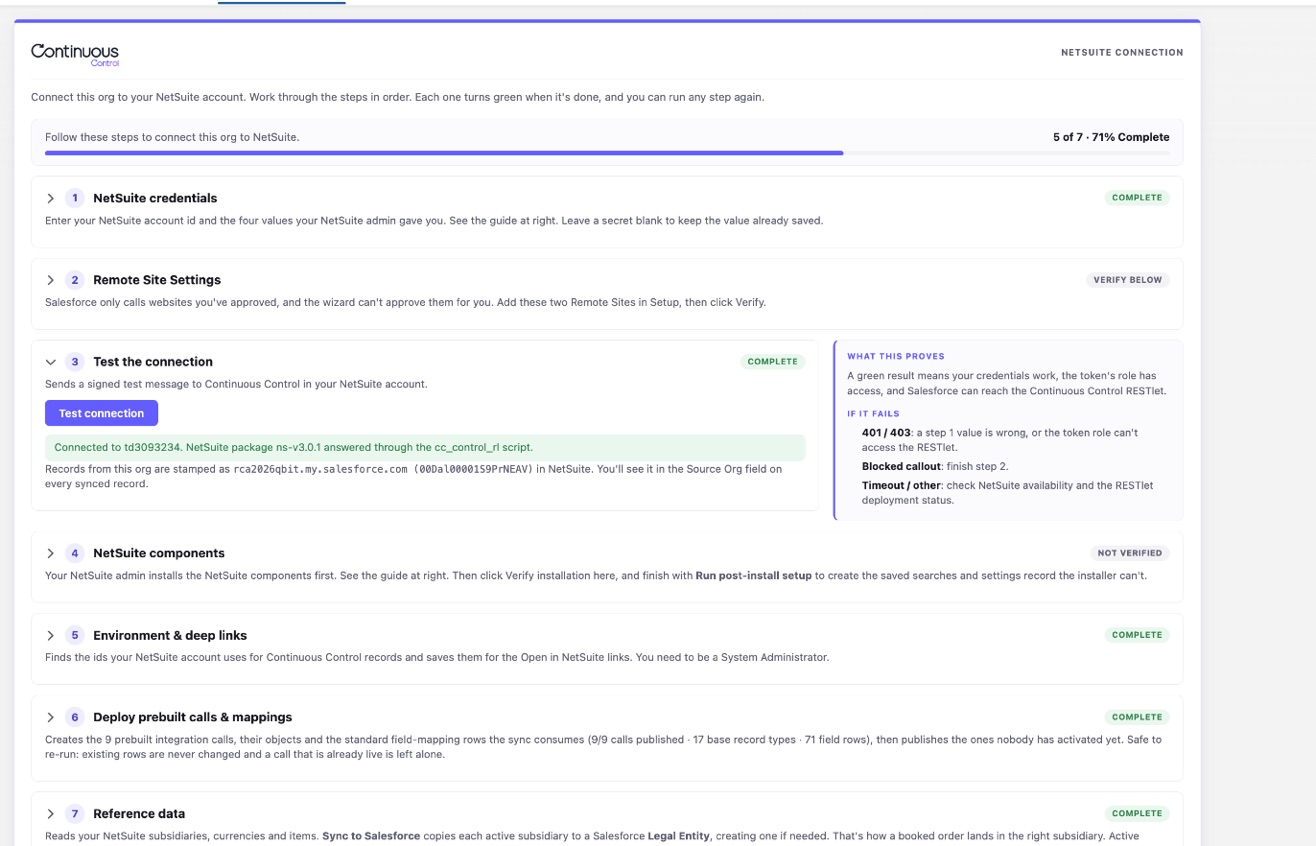
The wizard connects your Salesforce org to your NetSuite account. You'll find it on the NetSuite Connection tab of the Continuous Control app. It has nine steps. Work through them in order, and each one turns green when it's done.
Before you start, install both parts of Continuous Control. See Install the Salesforce package and Install the NetSuite components. You'll need the NetSuite login details your NetSuite admin created during that install.
You can run any step again later. Re-running a step never breaks anything that already works.
Step 1: Enter your NetSuite credentials
Enter your NetSuite account id and the four values your NetSuite admin gave you: consumer key, consumer secret, token id and token secret. Salesforce stores them securely and never shows them again. If you save again with a secret left blank, the stored value is kept.
No NetSuite account yet? Turn on Simulate NetSuite at the top of the step to demo with made-up NetSuite ids. You enter no credentials, and steps 1 and 2 show Complete. Skip to step 6. See Demo without a NetSuite account.
Leave the RESTlet fields blank
The two RESTlet fields tell Salesforce which NetSuite script to call. Leave them blank to use the one Continuous Control installs. Only fill them in if your NetSuite team renamed it. Under the fields, the step shows which script the connection uses.
Step 2: Allow Salesforce to call NetSuite
Salesforce only calls websites you've approved, and the wizard can't approve them for you. The step shows the two addresses to add as Remote Site Settings, with a link that opens Setup in a new tab. Add both, come back, and the step checks them.
Step 3: Test the connection
Click the test button. Salesforce sends a signed test message to NetSuite. If it works, you'll see the NetSuite version (for example 3.0.1) and the name this org stamps on the records it creates in NetSuite. That stamp tells you which Salesforce org a NetSuite record came from.
If the test fails, the step tells you what to fix: a missing remote site, wrong credentials, or the wrong account.
Step 4: Check the NetSuite install
This step makes sure everything Continuous Control needs is in NetSuite.
- Click Verify installation. It checks that every record type, script and saved search is there, and that the NetSuite version works with this Salesforce version. If the connection isn't using the Continuous Control Integration role or Administrator, this step shows a note asking you to move it. Nothing fails today, but a later release will require one of those two roles.
- Click Run post-install setup. It creates the settings record and saved searches that the installer can't create.
- Click Verify installation again.
- Under NetSuite account settings, pick the subsidiary, currency, accounts, tax items and refund settings Continuous Control should use in your NetSuite account. Each list shows only the choices NetSuite allows for that setting. A setting marked Shipped default still uses the sample value from the install.
- Click Save settings. The step turns green once every setting is chosen.
Run Verify again whenever you update the NetSuite components. You can come back and change the settings at any time.
With Simulate NetSuite on, Verify installation says there is no NetSuite package to check. You have nothing to set up in this step.
Step 5: Set up links to NetSuite
Continuous Control adds "Open in NetSuite" links to your Salesforce records. This step finds the ids those links need in your NetSuite account and saves them in Salesforce. You need to be a System Administrator to run it.
If it fails, the message says whether finding the ids or saving them went wrong. Fix the cause and run it again.
Step 6: Deploy the prebuilt calls
A call is one kind of sync, such as booking an order or syncing an invoice. Continuous Control comes with nine. Click Deploy prebuilt calls & mappings to create them and turn them on. You can't book orders until you do.
This button is the only thing that creates the calls. Opening Calls & Mappings or a record page never does. Until you deploy, Calls & Mappings shows a link back to this step, and the sync card on a record says its call isn't set up yet.
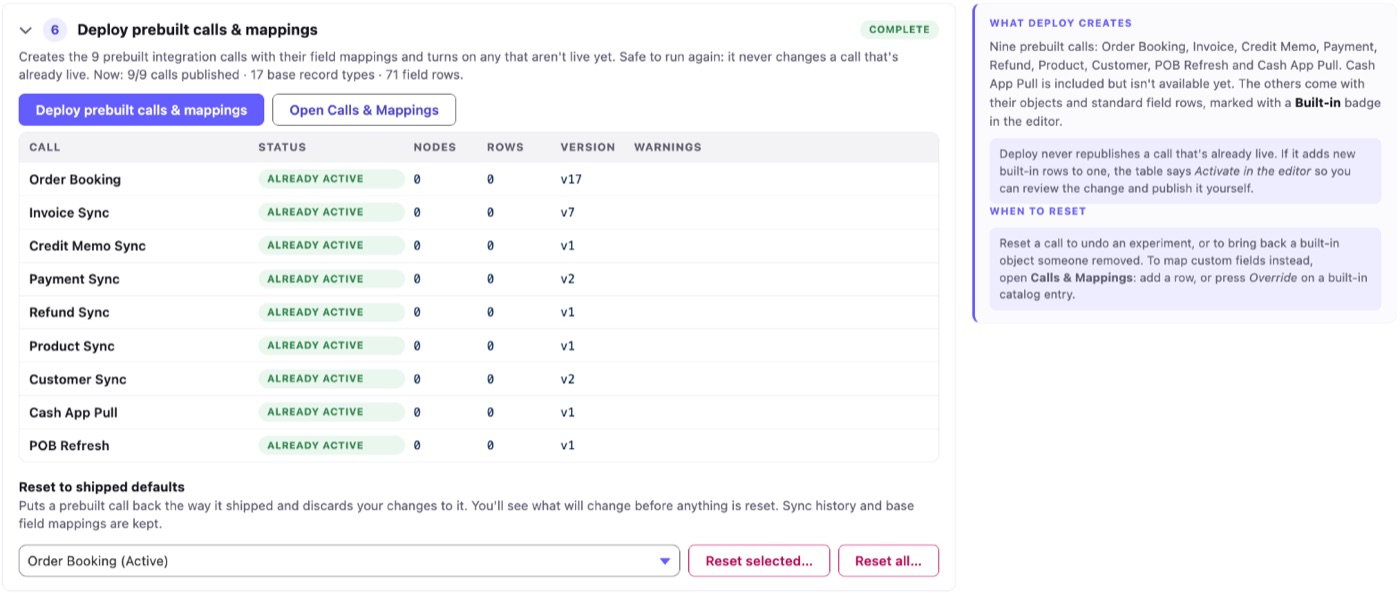
Once all nine calls are live, the step says so and the button reads Check prebuilt calls. It does the same job. It adds anything a newer version ships and never changes a call that's already on, so it's safe to run again. Run it after every Salesforce package update. If a call you've already turned on has new fields available, the table says so. Review the call in Calls & Mappings and publish it yourself.
If you turned a call off, Deploy leaves it off and shows it as Retired.
Reset a call to how it shipped
If you've changed a call and want to start over, pick it and click Reset selected, or click Reset all. Before anything happens, you'll see a list of what will change. A reset can't be undone. It doesn't touch your sync history or your base field mappings.
Step 7: Bring in reference data
Click Fetch from NetSuite to read your NetSuite subsidiaries, currencies and items.
Click Sync to Salesforce to copy each subsidiary to a Legal Entity in Salesforce. That's how a booked order ends up in the right subsidiary in NetSuite.
Match products to NetSuite items
If NetSuite already has items for your products, match them now. Otherwise your first booking will try to create items that already exist, and that line will fail.
A product matches an item when its Product Code and the item's name are the same, including case. The grid shows each proposed match. Change any you disagree with, then click Apply product matches. Nothing is saved until you do.
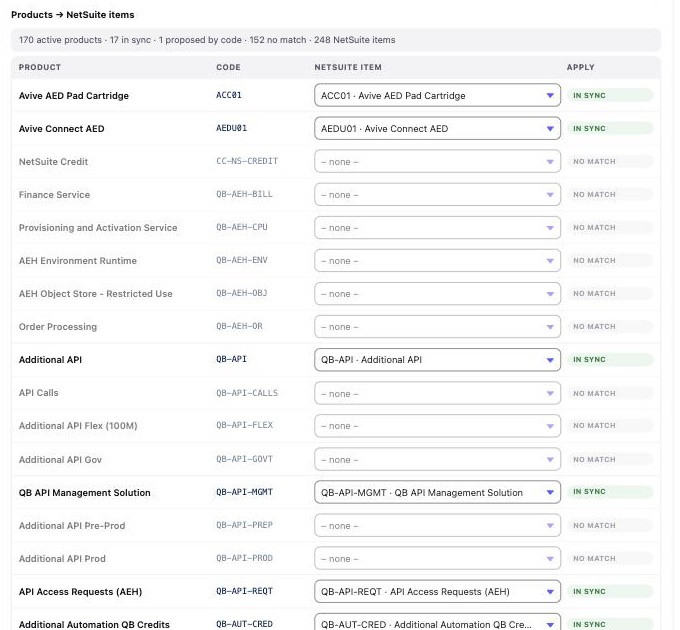
Products with no matching item are counted under the grid. Click Create them in NetSuite to add them all. Or leave them, and each one is created the first time it's booked.

Stamp accounts and products for a demo
With Simulate NetSuite on, there are no subsidiaries or items to read. Click Stamp every account and product instead. Each account and active product without a NetSuite id gets a made-up one. Their invoices, payments, refunds and credit memos can then sync right away. The step shows Complete once a product has an id.
Step 8: Review sync settings
The defaults work for most companies, so change only what you need. The one to understand first is the Continuous Revenue Engine switch:
- On (the default): NetSuite builds revenue plans whenever an order or invoice syncs, so you can recognize revenue.
- Off: Booked and Billed amounts still update, but NetSuite doesn't plan or post any revenue.
NetSuite has the same switch. If either one is off, the engine is off, and this step shows a hint telling you so. The other settings are described in Sync settings.
Step 9: Check health
This step shows how syncs have gone over the last week and checks every field mapping. It also shows your NetSuite account settings and points out any still on their defaults. Change them in step 4. Come back to it whenever something seems off, and after every update.