Running the revenue engine
The revenue engine turns a booked contract into revenue in your general ledger. You run it from the RC Contract in NetSuite. Most of it runs on its own after each sync. Posting to the ledger always waits for you to preview and confirm.
QuantumBit has booked Coralbay Technologies' 36-month subscription and synced its first invoice. It's month-end, and QuantumBit wants to recognize this month's revenue.
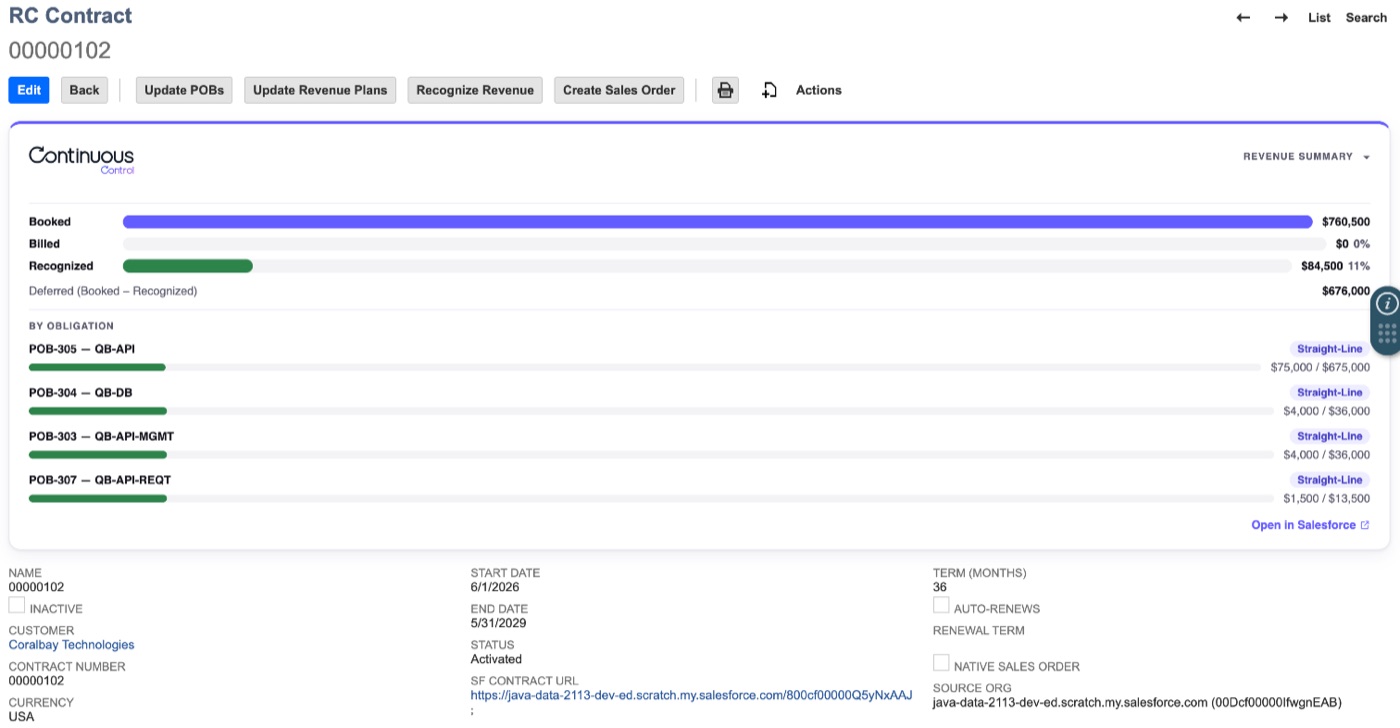
Know the three buttons
The RC Contract has three buttons. The first two usually run for you after each sync.
| Button | What it does | When it runs |
|---|---|---|
| Update POBs | Groups lines into performance obligations. Updates Booked and Billed. | After every sync, on the scheduled run, or when you click it |
| Update Revenue Plans | Builds each obligation's monthly revenue schedule. | After every sync while the engine is on, or when you click it |
| Recognize Revenue | Posts journal entries that move Deferred Revenue to Revenue. | When you click it, or on the scheduled run if you turn that on |
Each performance obligation record has its own Update POB and Update Revenue Schedule buttons. They update only that obligation.
Keep obligations current with Update POBs
Update POBs rebuilds the contract's structure from the latest data. It adds new lines to their obligations and links each invoice line to the obligation it bills. Then it updates Booked, Billed and quantity on each obligation and on the contract.
It's safe to run any time. A second run changes nothing. It always runs, even when the engine is off.
Build schedules with Update Revenue Plans
This builds a plan for each obligation. The plan spreads the Booked amount across months using the obligation's recognition method. Months already posted don't change. Open months are re-spread.
A plan only rebuilds when something it's based on actually changed. A quiet re-sync leaves it alone.
A very large contract may still say "run again" the first time. Click the button again to finish. The automatic runs do this for you.
Recognize this month's revenue
- On the RC Contract, click Recognize Revenue.
- Leave Action on Recognize, and pick the Recognize Through Period.
- Review the preview. It shows balances before and after, and every journal line with its accounts.
- Click Create Journal Entries and confirm.
Opening the form never posts anything. Nothing posts until you confirm.
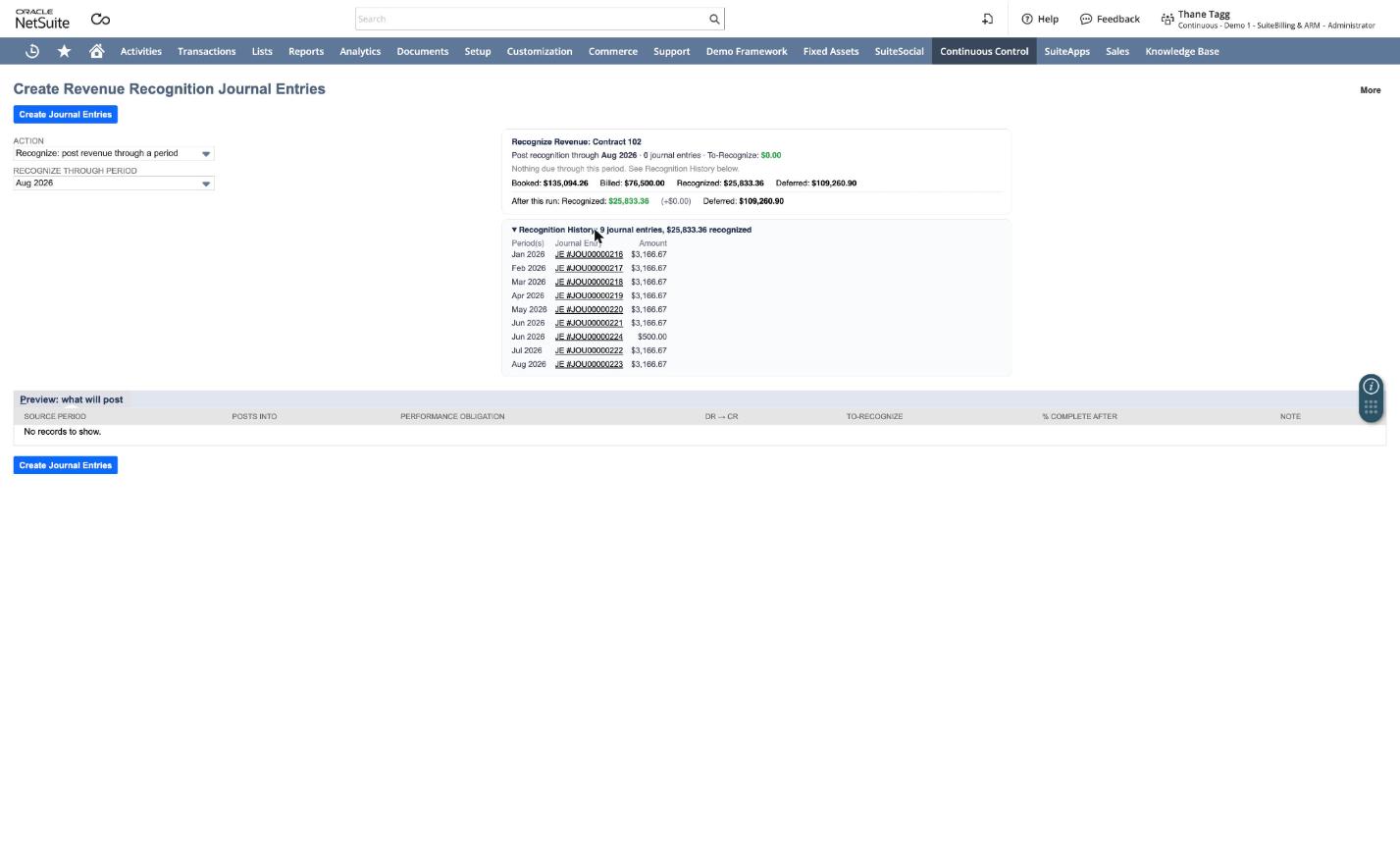
NetSuite posts one journal entry per period. It debits Deferred Revenue and credits Revenue, with a pair of lines per obligation. Each line names the customer and the obligation, with a memo you can read, such as "QB API Management Solution · Jun 2026 · Straight-Line, month 6 of 36".
If a month's period is already closed, its amount posts as a catch-up in the open period you picked.
Undo recognition
Open the same form and set Action to Reverse. Pick the Reverse From Period (inclusive), review the preview, and click Reverse Revenue.
Entries in open periods are deleted. Entries in closed periods are reversed in the current open period. The schedule rows go back to Planned. You can then recognize again.
Turn the engine off
Turn the engine off if you recognize revenue another way. Either switch turns it off:
- In Salesforce, the Continuous Revenue Engine switch in wizard step 8.
- In NetSuite, Disable Continuous Revenue Engine on the Continuous Revenue Settings record.
With the engine off, bookings, obligations, Booked and Billed still update. No revenue plans or journal entries are made. When the NetSuite switch is checked, the Update Revenue Plans, Recognize Revenue and Update Revenue Schedule buttons are hidden. The Revenue plans by POB card says the engine is off. See One engine, two switches.
Close every contract at once
At month-end, you can run the engine for all contracts. In NetSuite, open the Continuous Control tab.
- Run Portfolio Close runs Update POBs, Update Revenue Plans, and Recognize Revenue (when Auto-Recognize is on) for every contract. NetSuite then shows the job's progress.
- Recognize Revenue opens the recognition form for every contract that has plans.
- Close Run Log lists every engine run with its trigger, counts and status.
- Recognition Backlog lists revenue that's due but not yet posted.
The close job ships with no schedule. Set one in NetSuite. Go to Customization → Scripting → Script Deployments, open the Scheduled Refresh deployment, and add a recurrence on the Schedule tab. Nightly is typical. Until you set a schedule, Auto-Recognize on Scheduled Run in Continuous Revenue Settings does nothing, because there's no scheduled run for it to act on. The Connection wizard's step 4 in Salesforce flags a deployment with no schedule yet.
Once it's scheduled, the close job won't post revenue unless you also turn on Auto-Recognize on Scheduled Run. Most teams leave that off and post by hand.
A contract too big to finish in one run shows Partial in the run log instead of failing. Nothing is lost, and the next run picks up where it left off.