Placing the components
Add the Continuous Control cards to your record pages so people can sync from Salesforce. You place each card once, in Lightning App Builder. Only the Credit Memo page comes with its card already in place.
Continuous Control gives you two cards and a set of Flow actions.
- Continuous: NetSuite Sync sends a record to NetSuite.
- Continuous: Revenue Summary shows a contract's revenue.
- Flow actions let you run the same syncs from your own automation.
Add a card to a record page
- Open a record of the type you want, such as an Order.
- Click the gear menu, then Edit Page.
- Find the Continuous card in the custom components list. Drag it into the sidebar.
- Click Save.
- If the page is new, activate it for the apps and profiles that need it.
Put the sync card on the Order, Invoice Batch Run, Invoice, Payment and Account pages. Put the Revenue Summary card on the Contract page.
On the Contract page layout, also add the Performance Obligations related list. The package doesn't add it for you.
Know what the sync card does
The sync card changes to suit the page it's on.
- On an Order, it books the order.
- On an Invoice Batch Run, it syncs the run's posted invoices.
- On an Invoice, Credit Memo, Payment, Payment Batch Run, Refund, Product or Account, it syncs that record.
On a booked order, the card also shows Sync Order Lines at the bottom left. It sends each line's Delivered, Fulfilled and % Complete to NetSuite, and it's safe to repeat. Its result shows on its own line under the checklist. The booking status doesn't change.
It works the same way on every page. Before the sync, it lists what will be sent. During the sync, it shows each step. When it's done, it turns green and links to the record in NetSuite. Click View JSON payload to see the data that was sent.
The card picks its mode from the page. In App Builder, you can override it with Sync Mode.
Until the prebuilt calls are deployed in step 6 of the Connection wizard, the card has no button. It says which call isn't set up yet and where to deploy it.
Know what the Revenue Summary card does
The Revenue Summary card shows how much of a contract is booked, billed and recognized. It breaks the amounts down by performance obligation. A % Complete obligation also shows how far along it is, for example "% Complete · 40%".
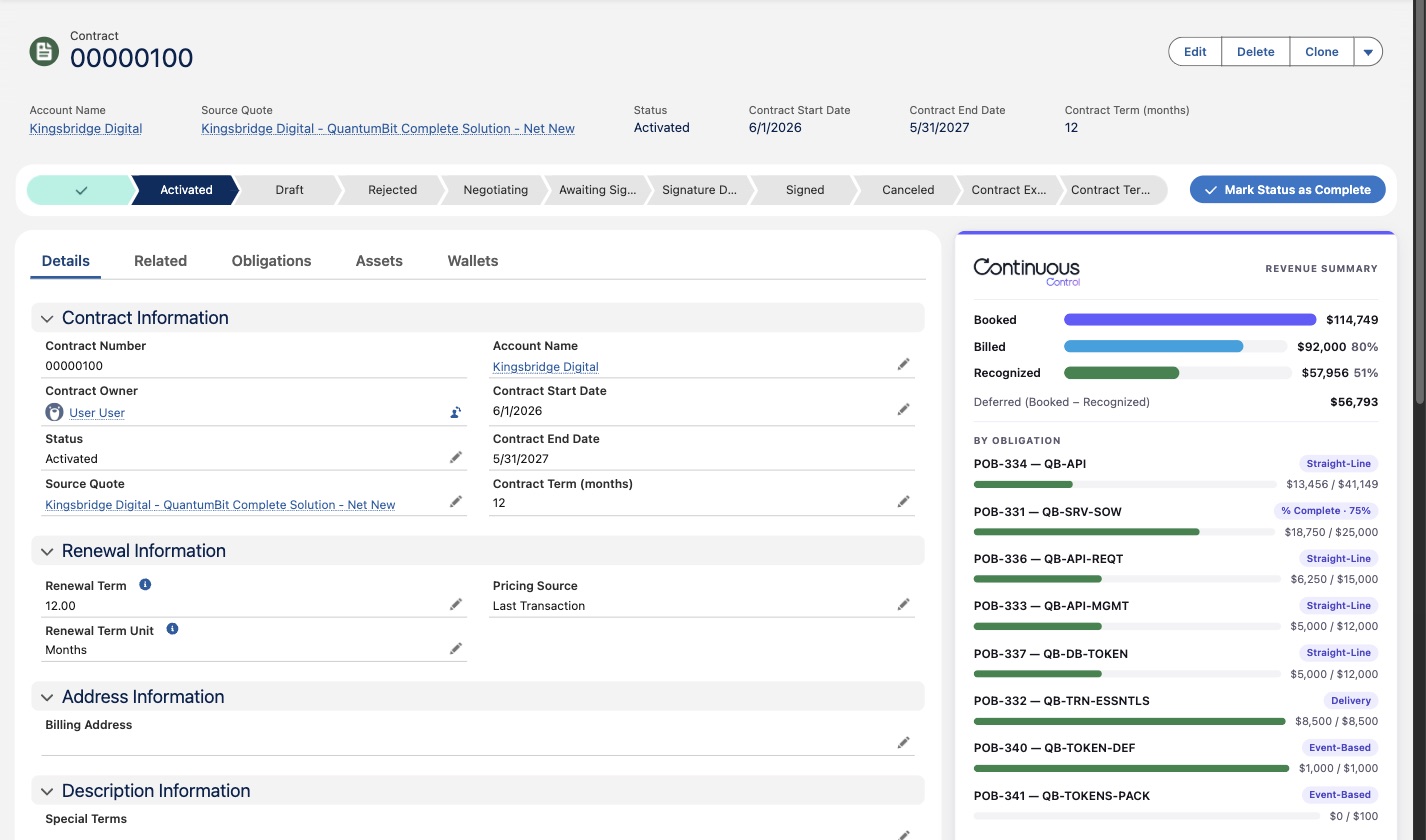
- Click Refresh from NetSuite to pull the latest amounts.
- Click Open in NetSuite to go to the RC Contract.
In App Builder, you can set the Card Title, hide POBs with nothing booked, or set the Currency Code.
Automate syncs with Flow
Every sync the cards run is also a Flow action, in the Continuous Control category. Each action starts a sync run and returns its id right away. The run record shows how it went.
The cards work fine on their own. Many teams start with the cards and add Flows later. A common set, with one record-triggered flow per object:
| When this happens | Call this action |
|---|---|
| An Order's status becomes Activated | Book Order to NetSuite |
| An Invoice's status becomes Posted | Sync Invoice to NetSuite |
| A Credit Memo's status becomes Posted | Sync Credit Memo to NetSuite |
| A Payment's status becomes Processed | Sync Payment to NetSuite |
| An Order Product's delivery, fulfillment or % Complete changes | Sync Order Lines to NetSuite |
To keep Revenue Summary current, schedule a flow that calls Refresh POBs from NetSuite for each active contract.
Send delivery updates with a flow
Say QuantumBit's fulfillment system marks Kingsbridge Digital's Essentials Training line delivered. This flow sends that to NetSuite with no clicks.
- Create a record-triggered flow on Order Product that runs after a record is updated.
- Set entry conditions so it runs only for booked lines whose Delivered, Delivered Date, Fulfilled, Fulfilled Date or % Complete changed. A booked line has a NetSuite Record Id.
- Add the action Sync Order Lines to NetSuite from the Continuous Control category. Pass the Order Product's Id.
- Save and activate the flow.
When many lines of one order change in one save, they go to NetSuite in one run.
Every action and its inputs are listed in the Flow actions reference.