Credentials & authentication
Salesforce logs in to NetSuite with Token-Based Authentication. You enter four values once, in the Connection wizard. Salesforce stores them securely and never shows them again.
How the login works
The login uses two pairs of values from NetSuite.
- The consumer key and secret come from the Integration record. They identify Continuous Control.
- The token id and secret come from an access token. They tie the login to one NetSuite user and role.
Salesforce signs every request with all four values. NetSuite checks the signature and runs the request as the token's role. That role limits what the sync can do. No passwords are involved. The security model covers the signing in detail.
Set up the Integration record correctly
You create the Integration record when you install the NetSuite components. One box on it causes most first-time login failures.
Under OAuth 2.0, uncheck Authorization Code Grant. NetSuite checks it by default on a new record. If you leave it on, the first login fails with "Invalid Redirect URI".
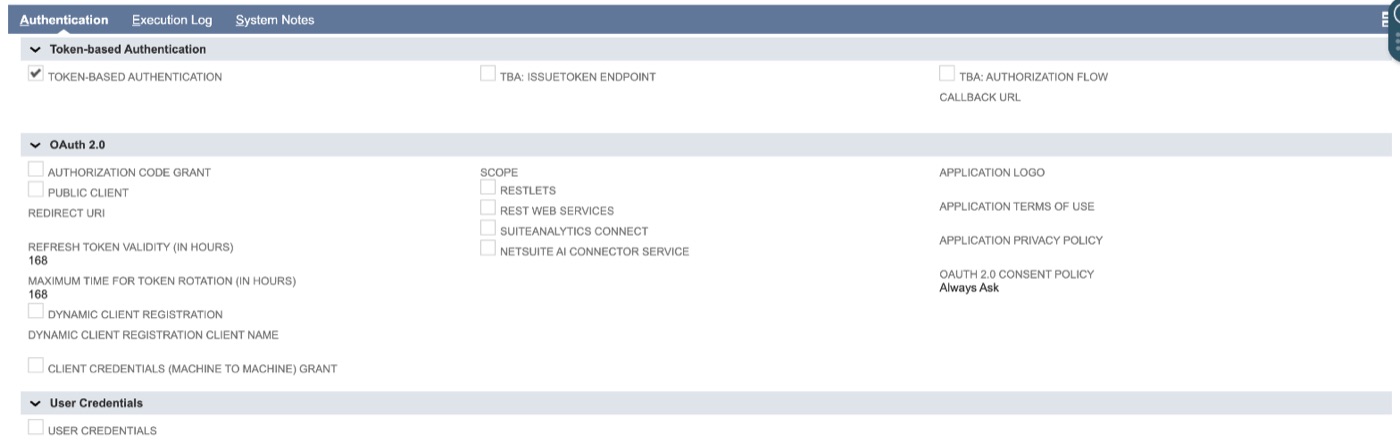
Check the whole record against this table before you save it.
| Field | Value |
|---|---|
| Name | Any name your team recognizes. Salesforce doesn't use it. |
| State | Enabled |
| Token-Based Authentication | Checked |
| TBA Authorization Flow | Unchecked |
| OAuth 2.0 | Both boxes unchecked |
Enter the credentials in Salesforce
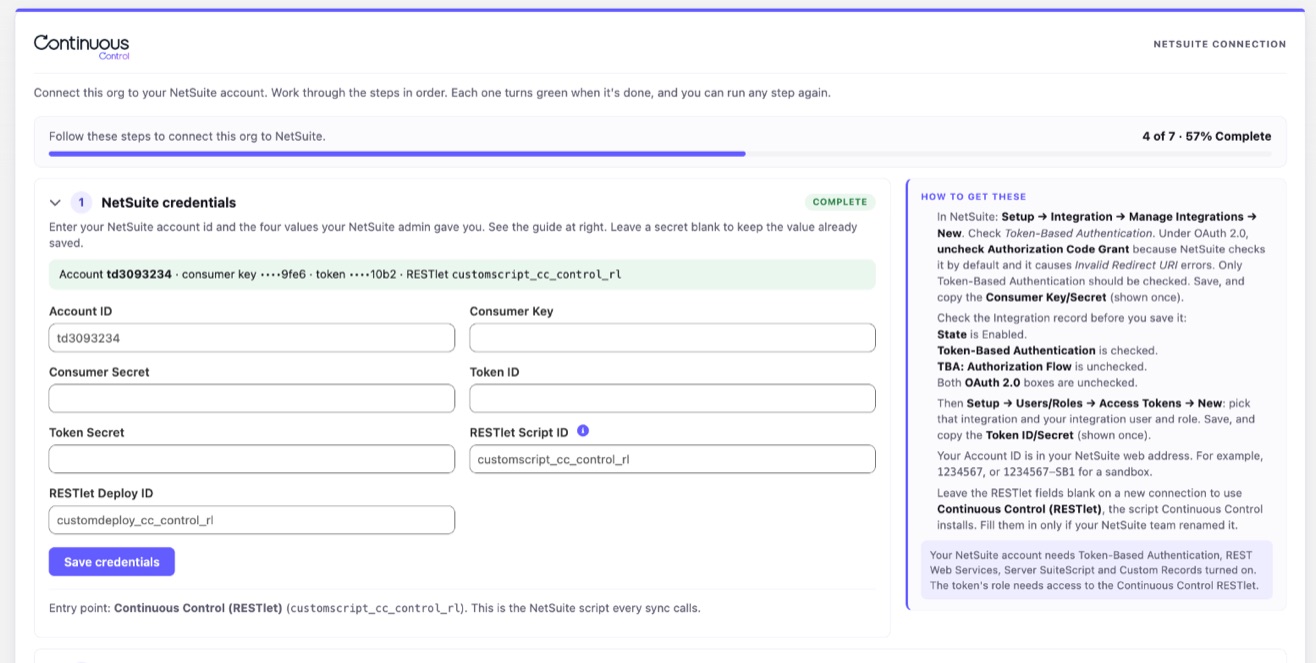
Enter them in Connection wizard step 1. You need the account id and the four values. For a sandbox, enter the account id the way it appears in your NetSuite URL.
Leave the two RESTlet fields blank to use the defaults.
How Salesforce keeps secrets safe
- Secrets are stored in an org-level custom setting. Only the sync reads them. They never appear on the page after you save.
- The wizard shows only the last four characters of each secret. That's enough to tell which token is in use.
- If you save with a secret field blank, the stored value is kept. So you can change the account id without typing the secrets again.
Replace a token
- In NetSuite, go to Setup → Users/Roles → Access Tokens and create a new token.
- In wizard step 1, paste the new token id and secret, then save.
- Run the connection test in step 3.
- Revoke the old token in NetSuite.
To replace the consumer key and secret, follow the same steps with a new Integration record. Nothing else in your setup changes.