Field mappings
Field mappings decide which Salesforce values land in which NetSuite fields. You see and edit them on the Calls & Mappings tab. Edit a built-in row to change what the sync sends, or add your own row to send another field.
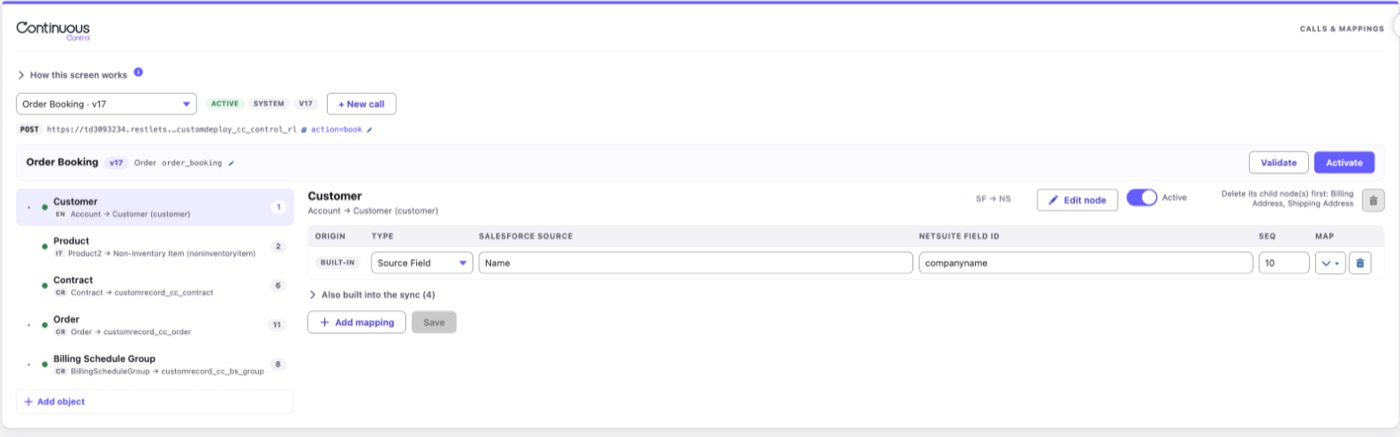
How a mapping works
The sync builds each NetSuite record in two passes. First it fills the fields that hold the integration together: ids, amounts, dates and links between records. Then it applies your mapping rows on top.
A row copies a Salesforce field, or a fixed value, into one NetSuite field. The Salesforce side can follow relationships, like Account.Owner.Email. Rows are applied last, so an edited row overrides the built-in value.
Say QuantumBit tracks a Region picklist on each Account and wants it on the NetSuite customer. QuantumBit adds a row to the Customer node, from Region to the matching NetSuite field. From the next sync on, every customer carries its region.
A blank Salesforce value is skipped. So a mapping row never empties a NetSuite field.
Customer addresses work the same way. They're ordinary rows on the two address nodes under Customer, and you can edit or turn off any of them.
Find your way around the editor
The left rail lists one node per synced record type. They include Customer, Product, Contract, Order, Order Line, the billing records, Invoice, Credit Memo, Payment and Refund. Each node shows the NetSuite record type it writes to, and its rows in order.
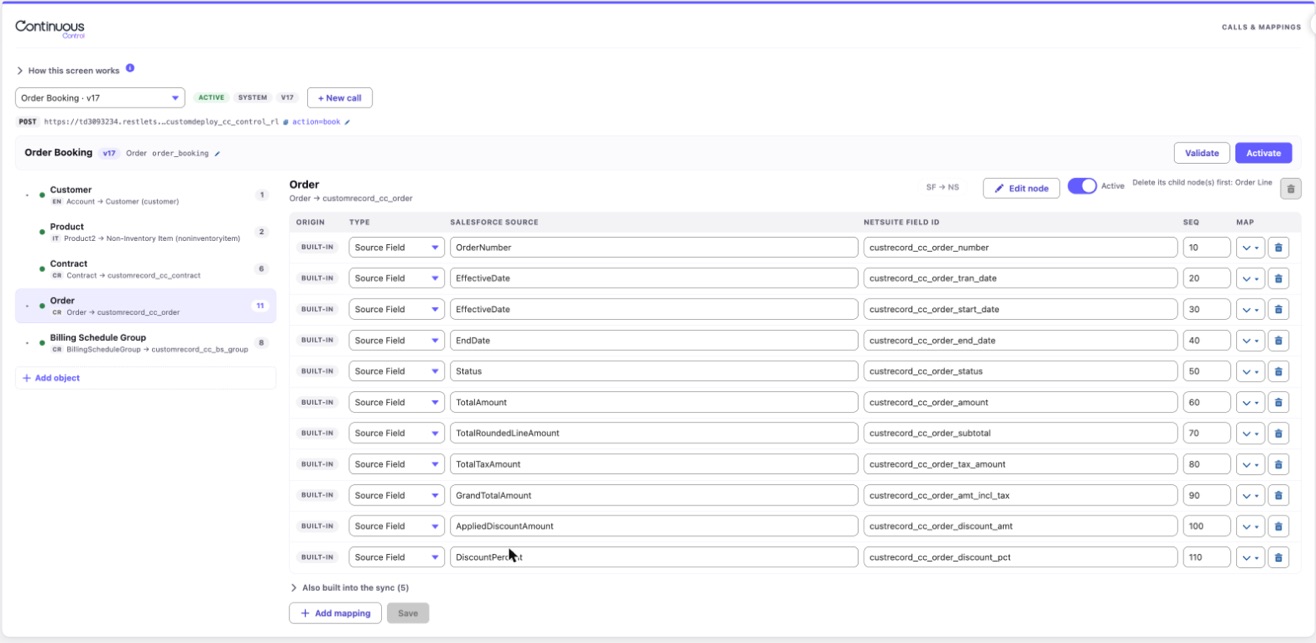
The editor checks your work as you type.
- Salesforce fields autocomplete, and the editor checks that they exist.
- You pick NetSuite fields from a list read live from your account.
- The editor compares the two field types. A date into a checkbox is blocked. A number into a text field gets a warning.
Know built-in rows from your own
| Row | What it does |
|---|---|
| Built-in | Ships with the package and shows a field the sync writes. If you edit it, your version wins. |
| Custom | A row you add to write another NetSuite field. If two rows write the same field, the later one wins. |
Order Booking's Order Line object has built-in rows for each line's Delivered, Fulfilled, their dates and % Complete. Order Line Sync sends the same fields on their own. It sends a fixed set, so it has no rows to edit.
A few NetSuite fields can't be mapped, so the integration can't break. These are record ids, external ids, links between records and the record type. The Source Org fields are also blocked. The sync stamps them on every record to show which Salesforce org it came from.
Transform values on the way
A transform changes a value before it's sent. Pick one from the row's transform menu.
Match picklist values with a Value Map
A Value Map connects a Salesforce picklist to a NetSuite list field. The editor loads both lists of options, and you pair them up. At sync time, the row sends the NetSuite value that matches.
Split and convert addresses
These transforms need no settings.
- First line sends only the first line of a multi-line value.
- Remaining lines sends the other lines, joined with a comma.
- Country code sends a country as its two-letter ISO code.
United StatesbecomesUS. A value that's already a code is sent as is.
Together, First line and Remaining lines split a street. 400 Main St goes to addr1, and Suite 210 goes to addr2.
If Country code doesn't recognize a name, it skips the value and warns you on the run. The country in NetSuite stays as it was.
Change the NetSuite record a node writes
Each node writes one NetSuite record type, called its target. An icon on the rail shows what kind of record it is, such as a custom record, a transaction, an item or a sublist line. Open a node to change its target.
- Pick the kind of record.
- Pick the record type. Where NetSuite can supply one, the list is read live from your account.
- Click Check. The editor asks your account whether the type exists and tells you how many fields it has.
If the check can't reach NetSuite, it says so. A missing login or a permission error isn't treated as a "no".
The Standard record kind lists every record NetSuite has, grouped by family. It only shows types your account has turned on. Need one that isn't listed? Type its id in Other record type and click Check.
Know which nodes can move
- Order on Order Booking can become a native transaction, such as a Sales Order, or another custom record.
- Product can become any item type, on any call.
- Nodes you added yourself can be any allowed type.
- Line nodes follow their document. Move Order, and Order Line moves to the matching line sublist.
- The document and application nodes on Invoice, Credit Memo, Payment and Refund Sync stay fixed. You can still add rows to them.
See Native transaction targets for what a move changes. Shipped calls lists every node's target and the alternatives.
Choose which rows come along
Built-in rows only fit the target they shipped with. So when you change a target, the editor asks what to do with them.
- Replace swaps in the built-in rows for the new target. For a Sales Order, order date goes to
trandateand order number goes tootherrefnum. - Keep my rows leaves every row as it is.
Rows that don't fit the new target lose their Built-in badge. Validate lists each one.
The suggested NetSuite fields under each row also follow the target. A node you point at a Sales Order gets the same suggestions as a moved Order node. For your own custom records, the editor suggests fields from the live list.
Target changes are drafts. Syncs keep using the active target until you click Activate. A moved node shows a Retargeted badge, with a button to reset it.
Control how a node you added writes records
On a node you added, open Advanced to find Write options. It starts empty. Empty means the node writes records the normal way.
| Option | What it does |
|---|---|
| Allow this node to create the record | Customers, contacts, vendors, employees and partners are only updated unless you check this. The fields NetSuite requires to create one are listed next to the box. |
| Custom form | The internal id of the NetSuite form to save records on. Leave it blank to use the preferred form. |
| Set by text, not by id | List fields NetSuite should match by name instead of by internal id. |
| Clear when Salesforce is blank | Fields to empty in NetSuite when the Salesforce value is blank. |
| Lookups | Fill a NetSuite field by finding another record, such as a project or department, by its external id. Name the NetSuite field, the record's table, and the Salesforce field that holds the id. |
| Sublist key fields | The column each sublist matches its rows on. Change it only when a sublist matches rows on a different column. |
Validate checks every field and sublist you name against the target. Write options need NetSuite release ns-v3.0.0, which every 3.0 install has.
Set up products as NetSuite items
The Product node has two extra panels.
- NetSuite item types decides which item type each product becomes. Non-inventory is the default. Rules can pick service, other charge, download or inventory. A rule here wins over the node's target.
- The item defaults panel sets the income account, tax schedule and subsidiaries for new items.
Item defaults apply only when an item is created. After that, NetSuite owns the item's setup, and the sync won't change it.
Attach documents
A Document row sends a file generated in Salesforce to the NetSuite File Cabinet. It finds the file by a title pattern and attaches it to the record after the sync. Contracts get their order form, and invoices get their PDF. Document rows work on the Invoice, Credit Memo and Contract nodes.